How courses are displayed via Course Layout
When you create a new course, you will be prompted to select a layout:

Available course layouts include:
- Course Default
- Long Sales Page
- Video Hero
- Life Coach
The layout you choose determines which blocks will be added to the course page. For example, the default layout includes the following blocks:
- Paragraph
- Course signup
- Course progress
- Course outline
Other layouts include additional layout/content blocks such as columns, spacers, groups, images etc. and additional optional Sensei blocks such as Contact Teacher.
Once you have selected your layout, you can edit and add any blocks to customize the course layout.
How lessons are displayed via Lesson Layout
When you create a new lesson, you will also be asked to select a layout:

Available layouts include:
- Default Lesson
- Files to Download
- Video Lesson
- Flashcards
- Lesson with Quiz
- Tasklist
- Zoom/Meeting
- Timed Quiz
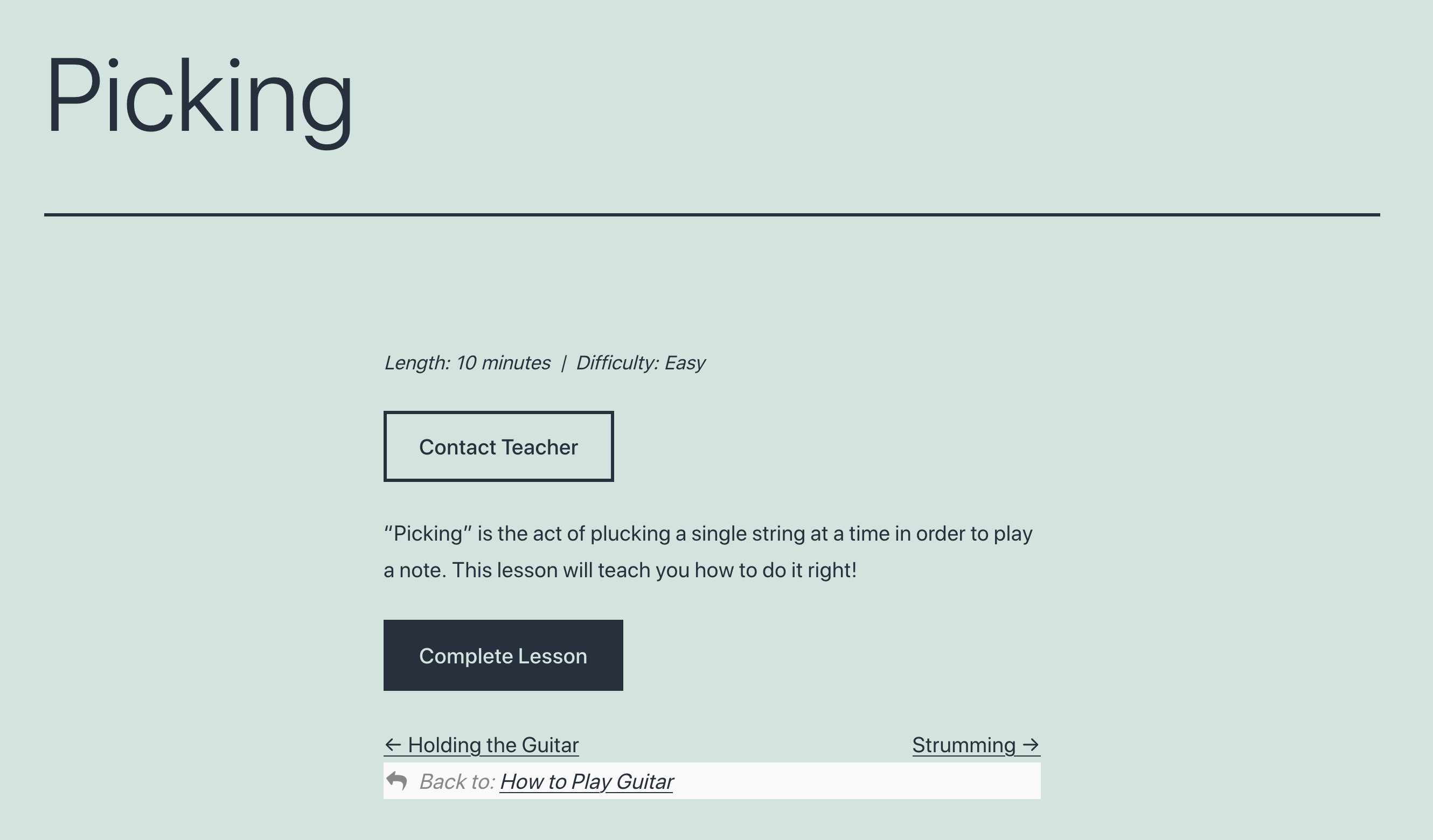
The layout you choose determines which blocks will be added to the lesson page. For example, the default lesson layout includes only a paragraph block and a Lesson Actions block.
Other lesson layouts include additional blocks such as the Quiz block, the Flashcard block, etc.
Once you have selected your layout, you can edit and add any blocks to customize the lesson layout.
Learning Mode Template
While the lesson layout determines which blocks make up the lesson content, if you use Learning Mode, the appearance of your lessons will also be determined by the Learning Mode template you have selected in Sensei LMS > Settings > Appearance. You can also edit Learning Mode Templates, or even create your own to further customize the appearance of your lessons.
What if My Course Doesn’t Use Any Sensei Blocks?
Although we recommend using Sensei blocks for all courses, there are a few reasons why you may wish to remove them (discussed further below). Also, if your courses were created on an earlier version of Sensei, they may not have been set up with the Sensei blocks by default. In either case, this will affect how the course is displayed to your learners.
If none of the Sensei blocks listed above are used on the course page, Sensei will automatically use a custom PHP template to display it to your learners. This means that the required components will still appear on the page, but you will not have the ability to customize them in the block editor:

Because of the lack of ability to easily customize this template, we recommend always using Sensei blocks for your courses. However, there are some reasons why you may wish to remove these blocks and utilize the template instead:
- If you have existing PHP-based customizations that work with the PHP template.
- If you have set up your theme and styling to work with the PHP template for existing courses, and you want new courses to look the same.
- If you prefer not to use the block editor (note that, as of 2019, the classic editor is no longer officially supported by Sensei).
Note that this display change will occur after save when you add the first Sensei block to a course, or when you remove all Sensei block from a course. In either case, Sensei will show a warning, and we recommend checking out the course preview to ensure that there are no unexpected problems before saving your changes.
What if My Lesson Doesn’t Use Any Sensei Blocks?
The above also applies for lessons. In this case, Sensei uses the PHP template if the Lesson Actions, Lesson Properties, and Contact Teacher blocks are not used in the block editor for that lesson: